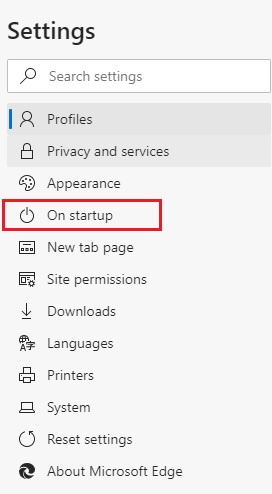
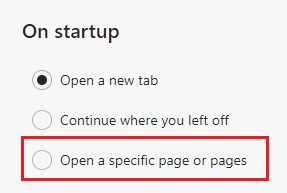
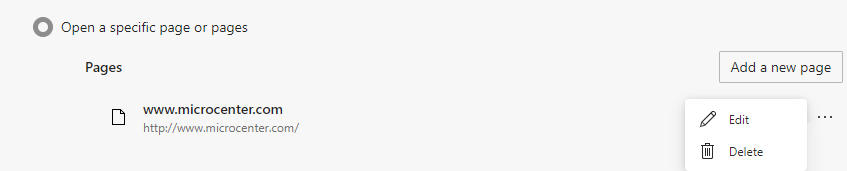
Looking to change where Microsoft Edge takes you when you open up the browser? This guide will show you how to set up and change your home page in Microsoft Edge. Here is how to set a home page:1. Click the three dots at the top of Microsoft Edge, then click on Settings. 2. Click On Startup from the Settings menu on the left side of the browser window. 3. To set a specific page, click the option for Open a specific page or pages. 4. From the additional options that appear here, click on Add a new page. 5. An “Add a new page” box will appear on your screen. Enter the URL (website) you would like to set as the home page, then click Add. 6. Once the URL is entered in, you can click on the three dots next to the page name and click on Edit to change to a different website, or Delete to remove it as your home page.